Cyclemeter Bike Computer
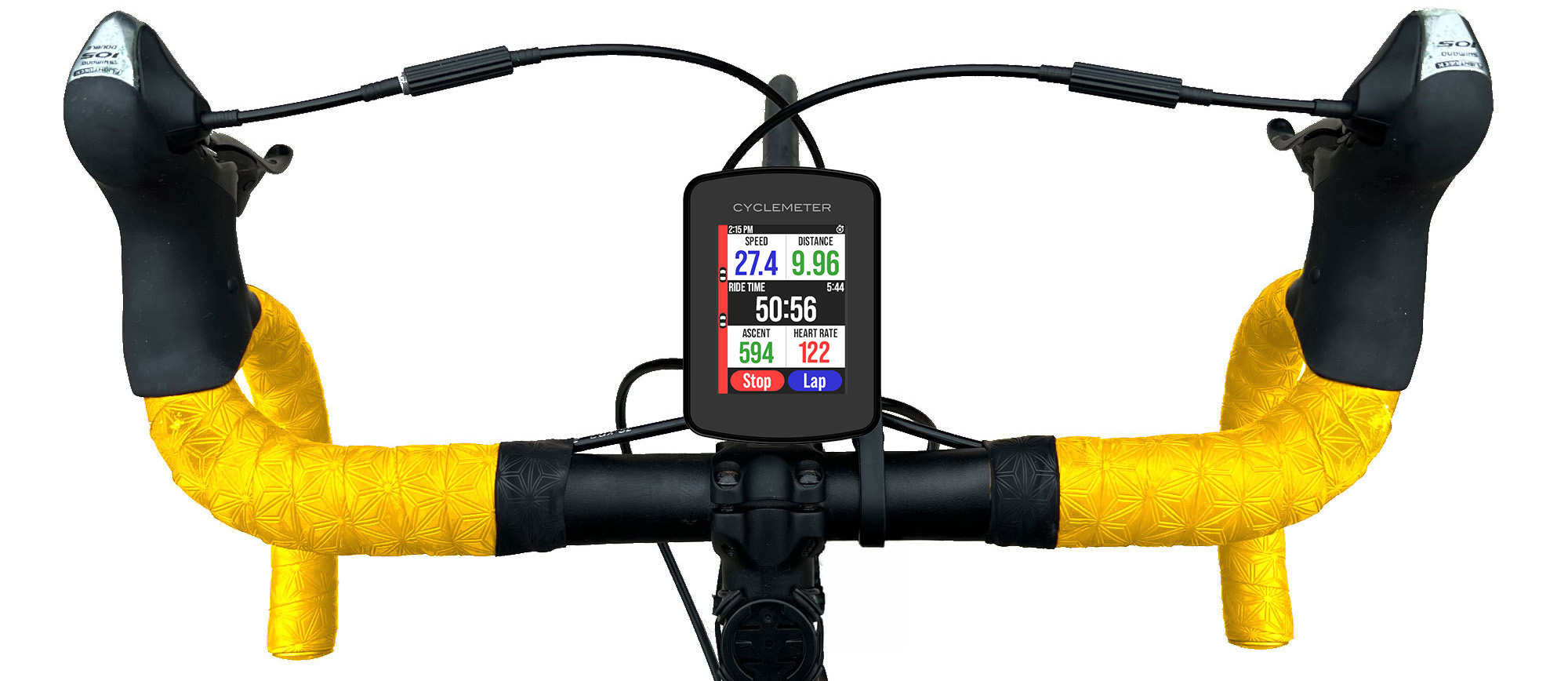
The Cyclemeter Bike Computer wirelessly connects to Cyclemeter and lets you start and stop rides, mark laps and intervals, and view hundreds of real-time statistics collected by Cyclemeter.
- Integrated with the powerful Cyclemeter app for iPhone. (Runmeter and Walkmeter, too!)
- Vivid transflective 2.8" display with backlighting.
- Up to 100 hours of riding per charge. Recharges with any USB-C charger and cable (not included).
- The lightest 2.8" bike computer in its class. Just 95 grams.
- Costs less than half as much as comparable Garmin Edge or Wahoo ELEMNT devices.
- Lightweight mount included. Fits most Garmin-compatible mounts.
Purchase the Cyclemeter Bike Computer
Features
View your stats, graphs, and maps
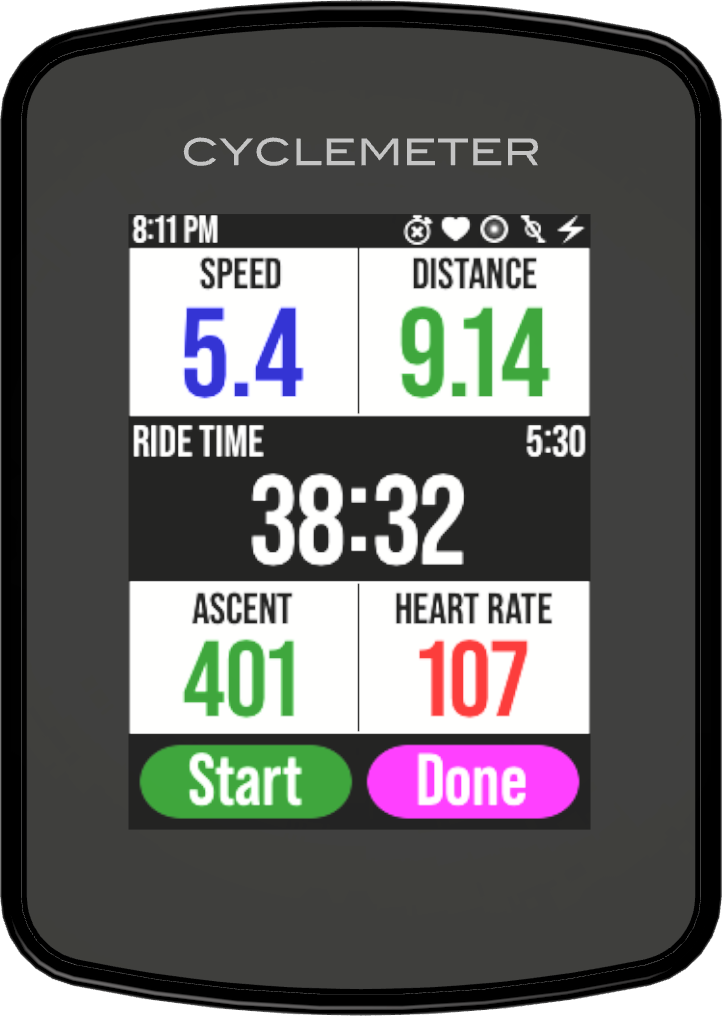
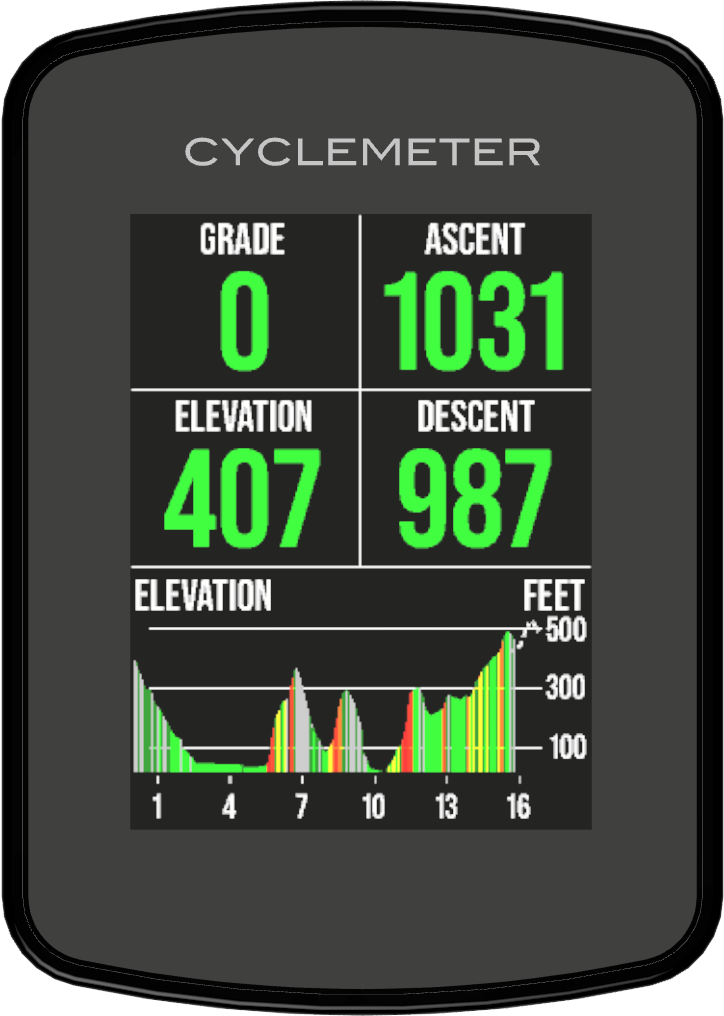
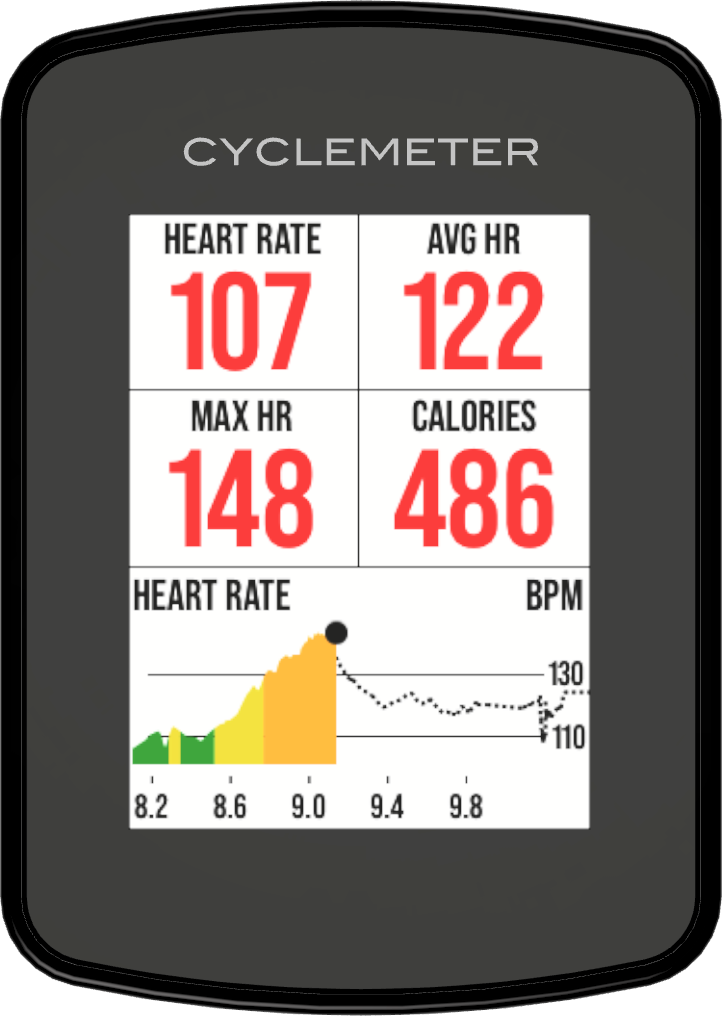
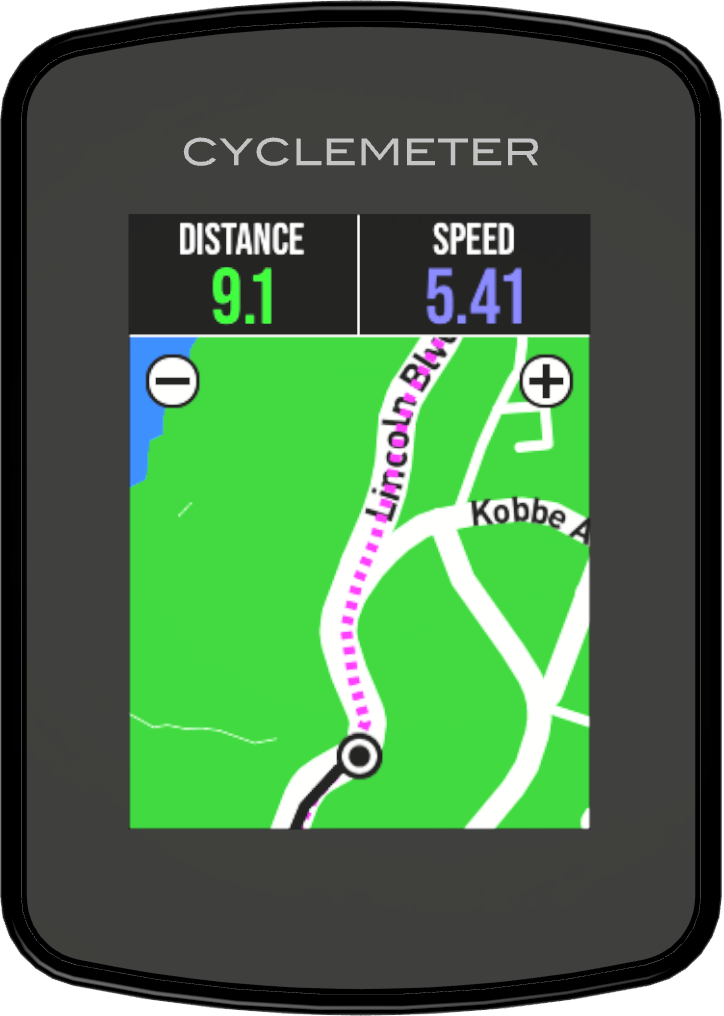
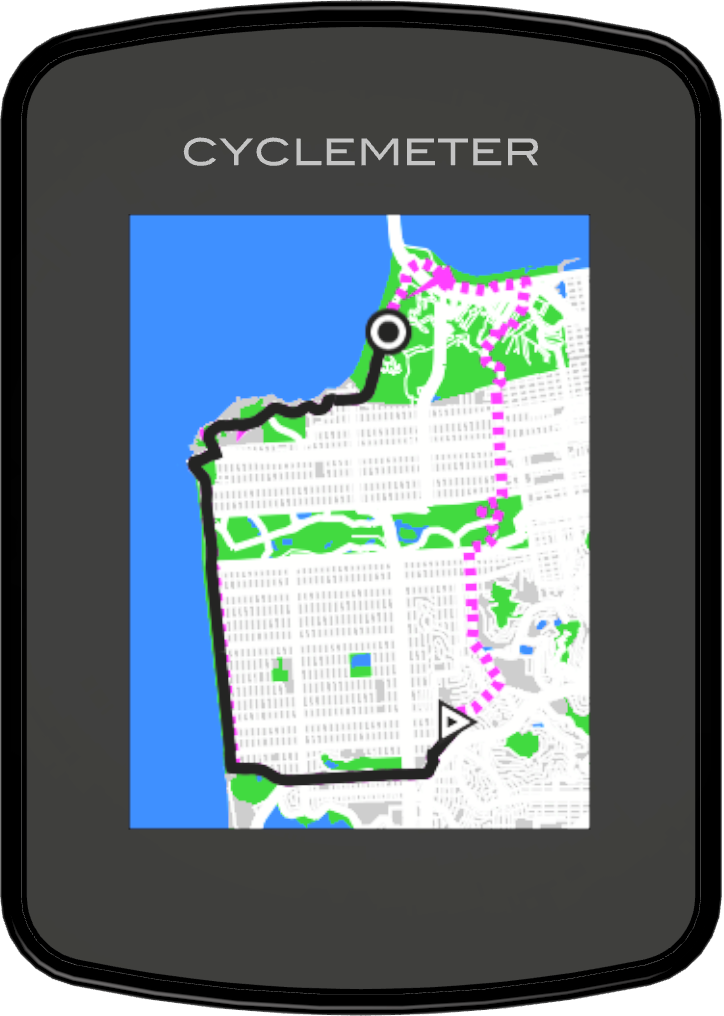
View hundreds of statistics, graphs, and maps that give you feedback and help you have your best rides ever.
Large and easy-to-read 2.8" screen
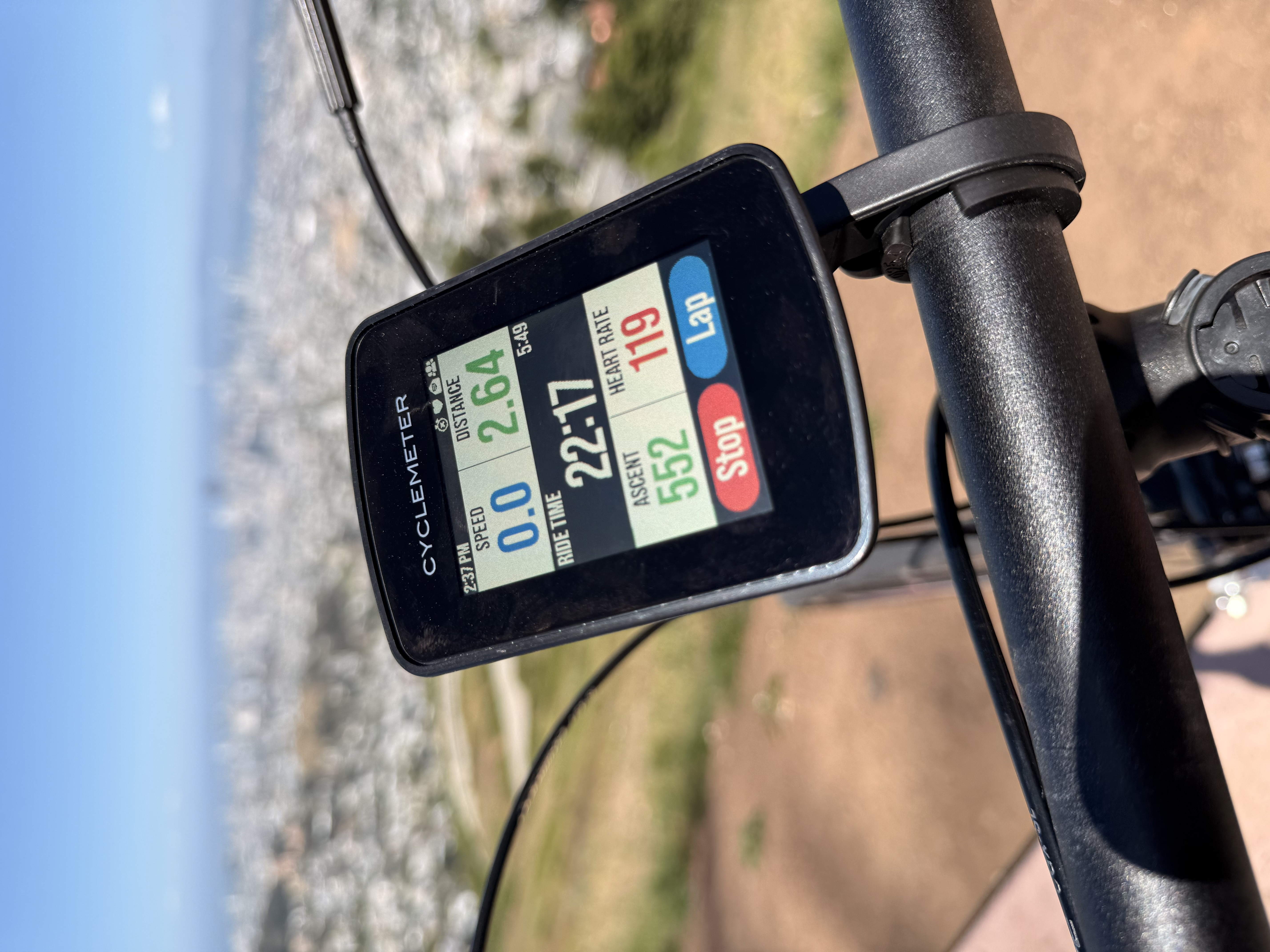
The transreflective screen is 2.8 inches (71 mm). 320 x 240 resolution. Easily readable in direct sunlight as well as on a cloudy day, unlike phone screens. Backlit for easy viewing at night, in the shade, or indoors.
Up to 100 hours of ride time. USB-C rechargeable.
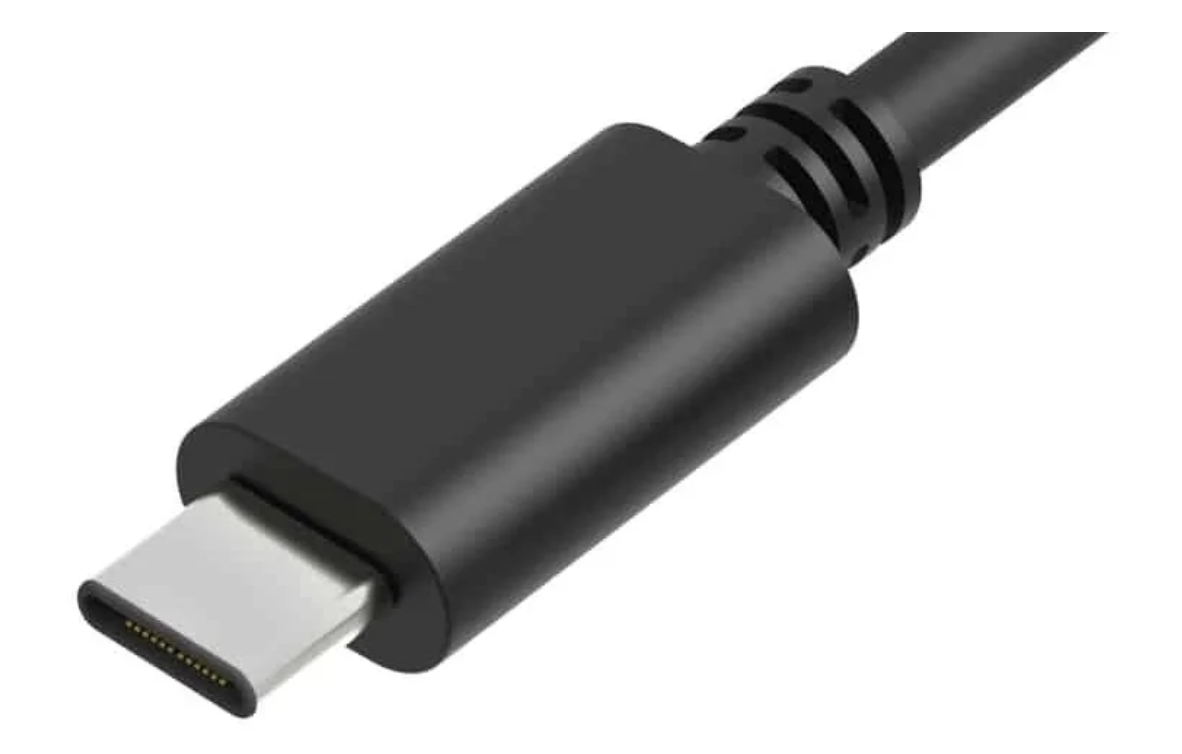
The 2150 mAh battery provides up to 100 hours of ride time — up to four times longer than many typical bike computers. Easily rechargeable with USB-C cable and charger (not included).
Controlled by touch or voice
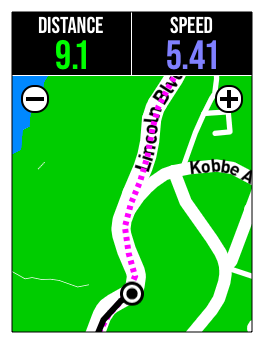
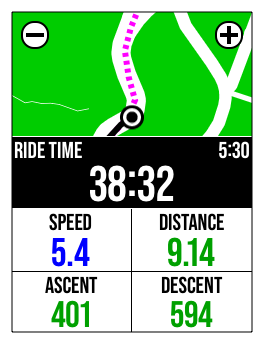
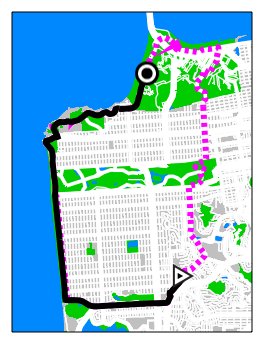
Just swipe left or right to see additional pages. Tap a button to start, stop, lap, or finish a ride. Tap the + and – buttons on maps to zoom in or out.
Double tap to wake. Swipe down with two fingers to power down.
You can also use Siri with the Cyclemeter app to start, stop, lap, or ask for statistics.
The lightest bike computer in its class
Only 95 grams. Lighter than bike computers that are 2.7" and larger.
Control your music
Pause and play your Apple Music app, or skip ahead or back.
Stay safe with bike radar
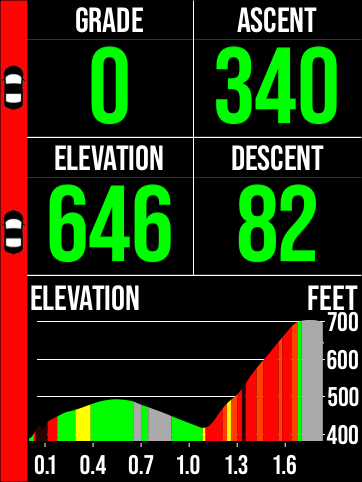
Supports Garmin Varia and Bryton Gardia bike radar devices. Hear audio alerts as vehicles approach from behind, and also see their relative locations on the display.
Make it your own
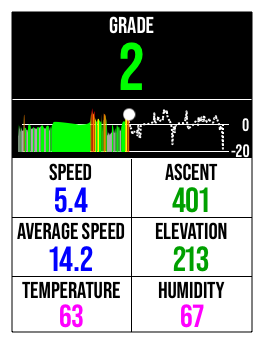
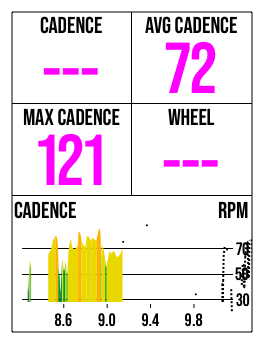
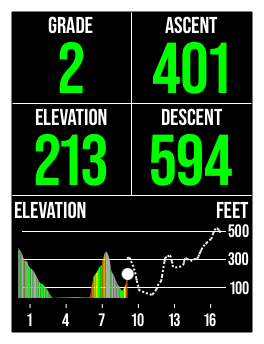
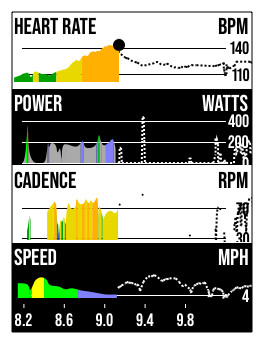
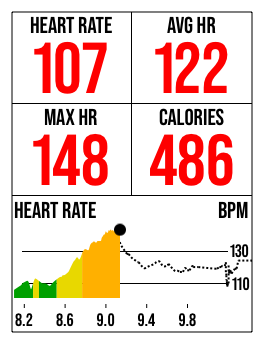
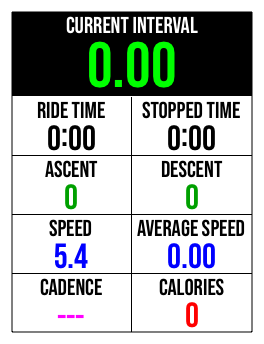
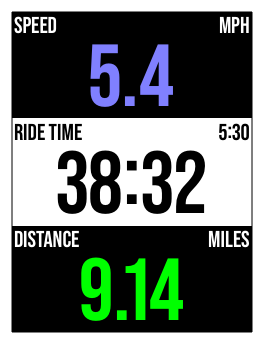
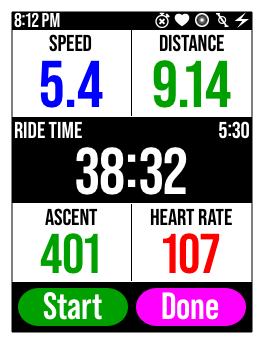
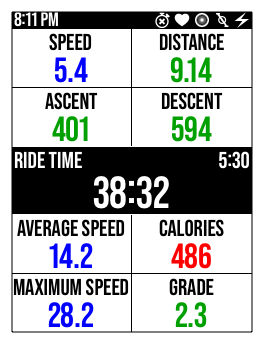
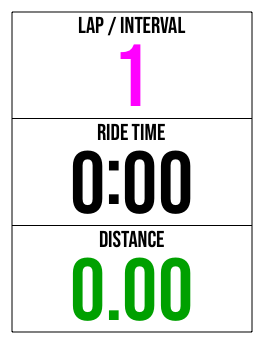
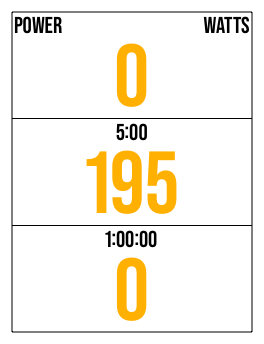
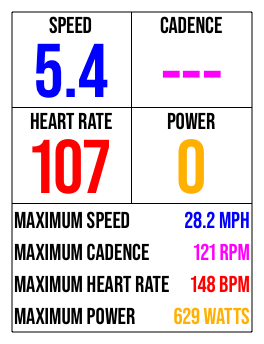
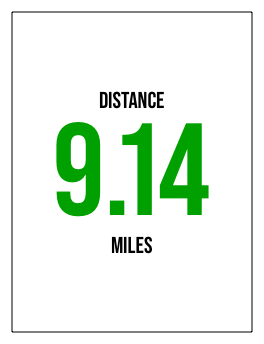
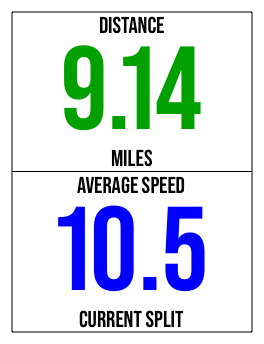
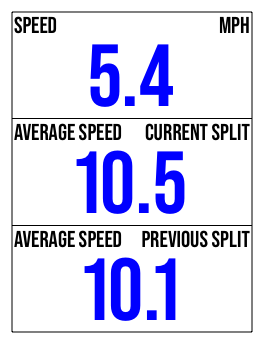
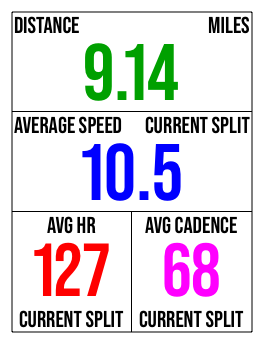
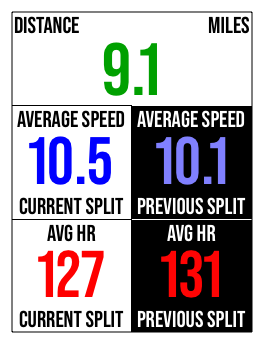
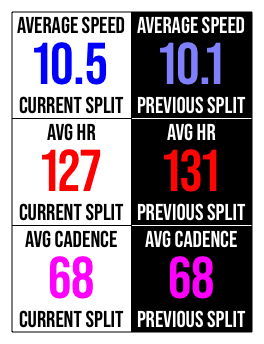
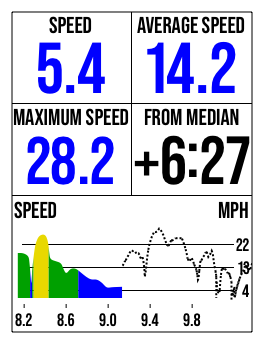
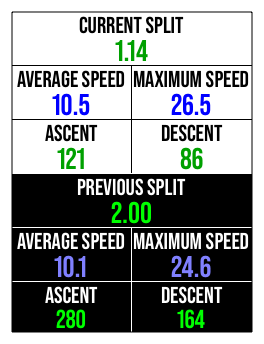
Fully customizable. The default pages automatically configure based on your device setup. Modify the pages, the panes, stats, and graphs to your liking. You can also create your own pages from scratch.
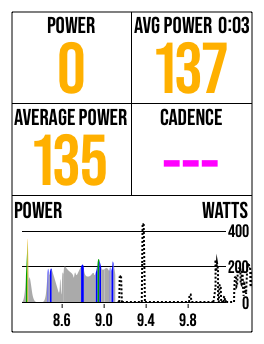
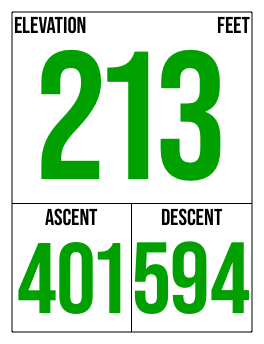
Here are just a few of the dozens of page templates you can use and customize.
Flexible mounting options
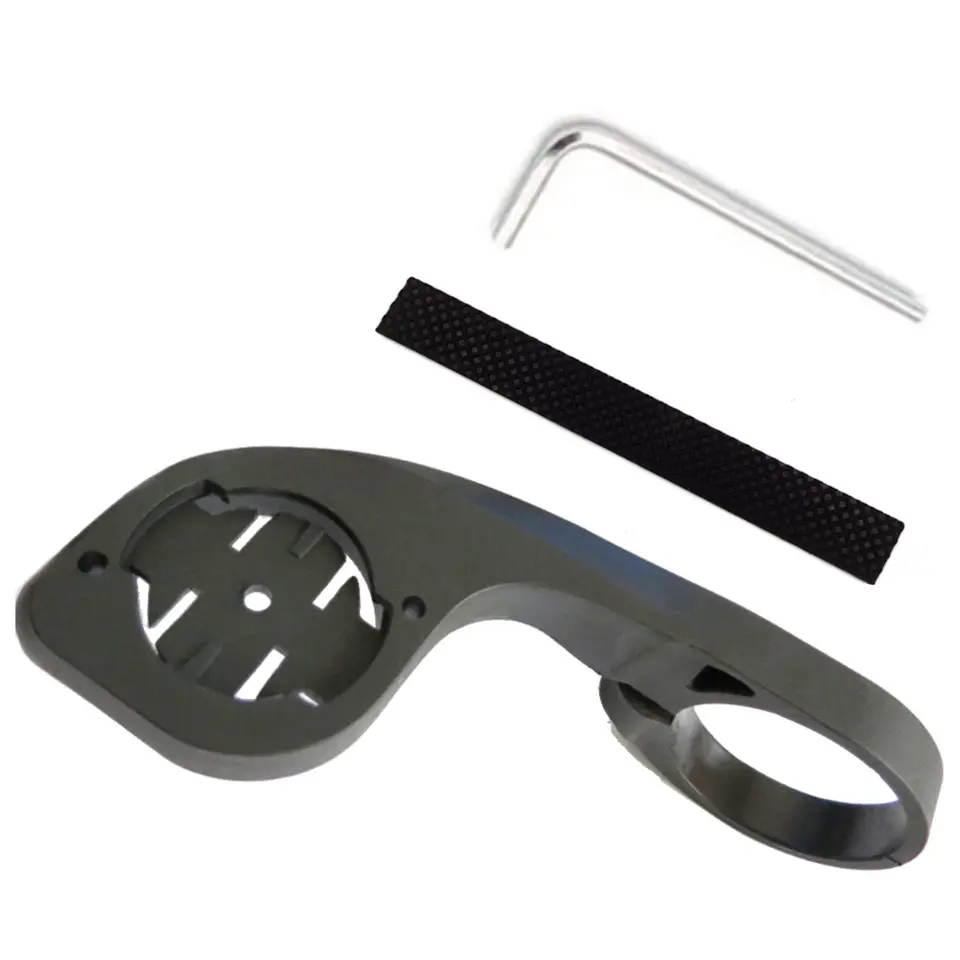
A lightweight mount for 31.8mm handlebars is included, with a reducing insert for 26mm handlebars. Or use your own mount. Compatible with most Garmin™ quarter-turn mounts.
Weather resistant and rugged
Go ahead, ride in the rain and pedal through the mud. The Cyclemeter Bike Computer is built for road cycling, mountain biking, and every day commuting.
A platform for the future
Designed by Abvio in California and assembled in the USA. The Cyclemeter Bike Computer is tightly integrated with our apps, and is a platform for future improvements. We’ll continue adding improvements and new features over time.
Works with Cyclemeter, Runmeter, or Walkmeter
Requires Cyclemeter, Runmeter, or Walkmeter. Unlock advanced features and sensor support with our Elite subscription.
Available for iPhone
Works with any iPhone that supports iOS 12 or later. Currently not available for Android.
A brighter, bolder ride
The Cyclemeter Bike Computer is the next generation of Cyclemeter on your handlebars. A vivid color screen, backlit for day and night readability, and a larger 2.8" display bring your ride to life — and a built-in rechargeable battery means no more coin cells.
The Cyclemeter Bike Display is no longer available, but we'll keep supporting it, so current owners can ride on with confidence.
Quick start
- Install the included bike mount on your handlebar using the included 3mm hex wrench, centered on the stem. If your handlebar is smaller than 31.8mm, then use the included rubber insert to reduce the inner diameter of the mount.
- With a quarter turn, install the Cyclemeter Bike Computer on the bike mount.
- Remove the protect film from the screen.
- Double tap on the Cyclemeter Bike Computer screen to turn it on.
- In Cyclemeter (or Runmeter or Walkmeter), go to More > Bike Computer.
- Tap Add Bike Computer.
- Within a few seconds you should see the bike computer shown in the list. Tap it to connect to it.
- You are ready to ride!
Using your Cyclemeter Bike Computer
The Cyclemeter Bike Computer wirelessly connects to our app to display ride data, maps, graphs, and statistics, while also providing remote control of ride recording. Our app must be running to connect to the Cyclemeter Bike Computer.
- Launch Cyclemeter on your iPhone.
- Optionally get set up for your ride using Cyclemeter and its powerful capabilities.
- Double tap the Cyclemeter Bike Computer to wake it up. It will then connect to the app.
- Tap the Start button to start the recording of your ride.
- Tap the Lap button to record a lap or an interval. Great for measuring hill intervals.
- Swipe left or right to switch between pages.
- On a map page, tap the + and - buttons to zoom in and out.
- Tap the Stop button to stop the recording of your ride.
- Tap Done to finish your ride.
When you tap Done at the end of the workout the display will automatically power down. You can also manually power down by swiping down with two fingers.
If our app is not recording your ride, the Cyclemeter Bike Computer will automatically shut down after a default 10 minutes. The Cyclemeter Bike Computer will then show the splash screen and power down after a minute. You can change this default in More > Settings > Advanced Settings > Keep Alive.
If you see the splash screen on the Cyclemeter Bike Computer for more than a few seconds, just launch our app and it will connect.
Charging the battery
Just plug your Cyclemeter Bike Computer into any USB-C charger and cable (not included), and it will recharge in a few hours. The screen will show you the charge level.
Customizing
Have your Cyclemeter Bike Computer at hand, and it will be automatically updated as you make changes.
Customizing pages
The simplest customization is to modify the statistic on an existing page. Here is an example for changing Descent to Humidity on the Main Statistics Page.
- Go to More > Bike Computer > Main Statistics.
- Tap on Ascent, Descent.
- Tap on Descent. You now see a list of possible statistics, with Descent chosen.
- Tap on Humidity. You now have changed your Cyclemeter Bike Computer to show Humidity instead of Descent.
Another customization is to add a page from a list of templates.
- Go to More > Bike Computer > Pages to view the pages currently used by your Cyclemeter Bike Computer.
- Tap + / Edit and then + to show the list of templates, including thumbnails.
- Tap on any template to add it to the list of pages.
- Tap + / Edit to reorder the pages or delete a page.
You can modify any page to your liking. Each page comprises panes of statistics, graphs and other visuals. A statistics pane can have one or two side-by-side statistics, or any number of rows.
Tap on any page to edit that page.
- Tap Page Name to edit the name of the page.
- Tap + / Edit to reorder or delete the panes on the page.
- Tap + / Edit and then + to add a new pane.
Tap any pane to edit it, then tap a statistic to change its features — such as text color, whether zone colors apply, and how captions and subcaptions are positioned.
Each pane has a pane size, which controls the vertical amount of space that the pane consumes. For example, if you have four panes with sizes of 7, 5, 3, and 5, the total of the pane sizes is 20, and so the panes will take up fractions of 7/20, 5/20, 3/20, and 5/20 of the vertical space.
Support
If you have any questions, please contact us at support@abvio.com. We are happy to help!